Calendar Spam: Why It Looks Like It Bypasses Gmail and Lands on Your Phone
Last week a meeting invite landed on my iPhone calendar from someone I had never heard of. The “organizer” was “Anable woolas” at a domain I did not recognize. The event was titled Order 5518-AUMR-VNH activity has been updated successfully. The actual email had already been routed to my Gmail spam folder. So how did the calendar event still make it onto my phone?
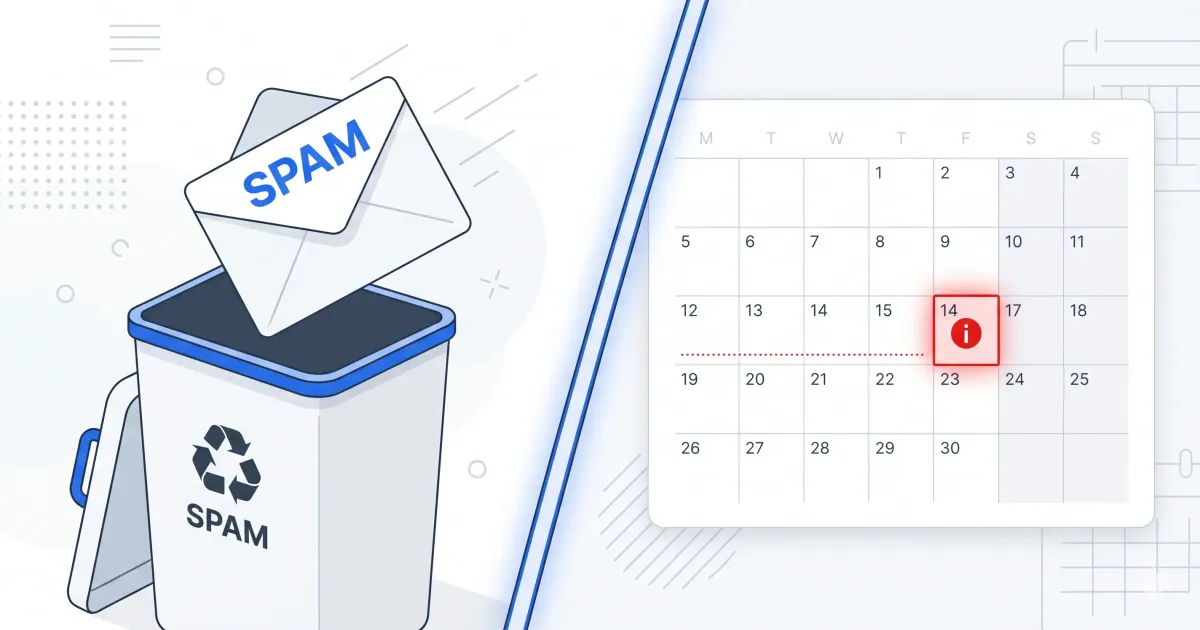
The short answer: Gmail did not fail. Calendar made a separate decision.
This is the story of a clever attack that exploits a gap most people do not know exists, and the four settings that close it. None of them are on your phone.
I use Google Workspace, not personal Gmail. But everything that follows applies equally to both. The settings UI and the underlying behavior are practically the same. When I say “Gmail” later in the article, read it as “the Gmail app, whether your account is Workspace or personal.”
What the attack looks like
The email is a fake McAfee subscription renewal. It claims a $512.19 charge has just been applied to your account and asks you to call a US phone number “to cancel.” There are no links to click. The phone number IS the attack.
This kind of scam is called callback phishing. The attack happens on the phone:
- You call the number to dispute the charge
- A “refund agent” answers, apologizes, and offers to reverse it
- They ask you to install AnyDesk, UltraViewer, or TeamViewer “so we can process the refund”
- From there, they either run a fake refund flow that ends with you sending money, or they install a remote-access trojan on your machine and steal credentials
The pattern matches a family of scams that the FTC, the U.S. federal consumer protection and competition agency, describes in the context of tech support and fake refund schemes: alarming messages, phone calls, remote access, and pressure to pay or hand over financial information. Without malicious URLs, most URL-based security filters never fire. The entire attack chain depends on you dialing the number.
Why Gmail’s spam filter did not save me
Gmail’s spam filter did its job. The email arrived, was classified as spam, and was routed to the Spam folder, where I would never see it. Good.
But Google Calendar is a separate system. When a calendar invitation arrives, Calendar processes it and decides whether to add the event to your calendar according to its own invitation settings, separate from Gmail’s visible spam verdict. Google documents this option under Event settings > Add invitations to my calendar.
If your Calendar setting is “From everyone,” invitations may be added automatically. If you change it to “Only if the sender is known,” Calendar only adds events automatically when the sender is in your contacts, is part of your organization, or is someone you have interacted with before. Invitations from unknown senders remain as email invitations, where Gmail has another chance to do its job.
So the email lands in spam where you never look, and the event lands on your calendar where you do. From your point of view, it looks like the spammer “skipped” the filter. In reality there are two separate decisions, and only one caught the message.
The clever part: the attacker uses Google to spam you
This is the technically interesting bit.
The attacker registered a domain (in my case, kajinvs.com), signed up for Google Workspace, and created a Google Calendar event from inside that Workspace tenant. Then they “invited” thousands of harvested email addresses to the event. In the headers of my case, the invitation appeared to be sent by Google infrastructure and authenticated as such. To your mail provider, it looks like Google sending Google.
That is why the standard “block sender” advice has limited effect. The actual sending infrastructure is Google. The attacker is just renting it.
In other words, this was a Workspace-to-Workspace attack: a Workspace tenant on the attacker’s side sending into my Workspace tenant. That detail matters because Google documents Calendar usage limits to prevent spam, and those limits change depending on the type and age of the account. A paid and mature Workspace account can offer more abuse surface than a new account, a trial account, or an account with stricter limits.
I am not saying Workspace is insecure. I am saying that a valid account inside a trusted provider changes the filtering calculation. The message does not arrive from a strange server somewhere on the internet; it arrives through the path legitimate invitations normally use.
Why “Decline” is worse than ignoring
The invite arrives with three buttons: Yes, No, Maybe. Tapping any of them is not a neutral action. Google documents that, when you respond to an invitation, the organizer receives a notification.
That gives the attacker a useful signal: your address exists, you saw the event, and you responded. Result: you may end up on a verified-target list and receive more spam, not less.
The safe response is to ignore the invitation and remove the event using a method that is not an RSVP response. Specifically: report it as spam from inside Google Calendar, if the option is available.
The four settings that fix this
All four live on the Google side, in a desktop browser. iPhone settings are not relevant here, because iPhone Calendar is just a mirror of what is already on your Google Calendar. Fix the source.
1. Stop adding invites from unknown senders to your calendar
- Open
calendar.google.com - Gear icon (top right) > Settings
- Left menu: Event settings
- “Add invitations to my calendar” > change to Only if the sender is known
After this, only people in your contacts, in your organization, or people you have interacted with before will add events automatically. Everyone else remains as a pending invitation in your email, where Gmail’s spam filter can do its job.
2. Delete auto-saved spammers from Other Contacts
Google automatically saves people you interact with in a list called “Other contacts.” That can include addresses you did not add manually. Once a spammer is in that list, they may count as “known” and bypass setting 1.
- Open
contacts.google.com - Left menu: Other contacts
- Delete any sender you do not recognize
3. Stop the auto-save behavior going forward
Two separate toggles. Both need to be off.
Account level:
- Open
myaccount.google.com/people-and-sharing - Open “Contact info saved from interactions”
- Turn off Save contact info when you interact with people
Gmail-specific:
- Gmail > gear icon > See all settings > General tab
- “Create contacts for auto-complete” > select I’ll add contacts myself
4. Report the existing event as spam (not Decline)
- Open the spam event on
calendar.google.com - Three-dot menu (top right of the event popup) > Report as spam or Mark as spam
Google documents this action for suspicious invitations and events sent from Google Calendar: when you report the event, it is removed from your calendar. In practice, it also avoids you sending an RSVP response such as Yes, No, or Maybe.
A note for iPhone users
If you use the built-in iPhone Calendar app connected to a Gmail or Google Workspace account, everything above applies. The iPhone Calendar is a viewer. It shows you whatever is on your Google Calendar server-side. Once you fix the settings on Google, the iPhone will reflect the change after syncing. There is nothing extra to configure on the phone for this specific case.
If instead you use an iCloud email and your calendar is based on iCloud, the logic changes. There are parallel variants of calendar-invitation spam in iCloud, but it is not wise to mix instructions as if both platforms worked the same way. Review the invitation options available in your version of iOS or iCloud and, when available, prefer receiving invitations by email instead of direct calendar notifications.
The idea is the same: make the invitation pass through an email inbox, with its filters, before it becomes a calendar alert.
How to spot callback phishing without reading email headers
Five tells that need no technical analysis:
- A generic transactional subject like Order [random] has been updated successfully
- A US phone number printed prominently in the body
- A specific dollar amount with odd cents ($512.19, $419.87)
- A brand or product name that sounds plausible but is not quite right (InfinitySafe Shield, SecureGuard Pro)
- Spelling and formatting tells: misspelled street names, double commas, lowercase country names
When you see this combination, the phone number is the attack. Do not call it.
If you got this exact invite
If your inbox has a calendar event from anablewoolas@kajinvs.com or a similar variant:
- Do not tap Yes, No, or Maybe
- Do not call the phone number
- Apply the four settings above
- In Gmail, find the email (almost certainly in Spam) and use Report phishing rather than just delete. Phishing reports help feed Google’s detection and abuse systems.
- If you administer a Workspace tenant or any other mail platform for an organization, search your security logs for the sending domain (
kajinvs.comin this case) and check whether other users received similar invitations. It is also worth reporting to Google Workspace abuse atsupport.google.com/a/contact/abusewith the full headers.
Useful sources
- Google Calendar: manage invitations in Calendar
- Google Calendar: report inappropriate invitations and events
- Google Account: change who’s saved and suggested as contacts
- Gmail: avoid and report phishing emails
- Google Workspace: Calendar usage limits
- FTC: how to spot, avoid, and report tech support scams
The takeaway
This attack is not sophisticated. It exploits a gap: two Google products doing their separate jobs correctly, without sharing the same verdict. Closing the gap takes about four minutes once you know where the settings live.
The same kind of gap can exist in other cloud providers, with variations. The general lesson is worth remembering. A piece of mail being correctly filtered as spam does not mean every system that touches it will treat it the same way. Calendar systems, contact systems, and notification systems often share a mailbox, but they do not share a verdict.
By: Cesar Rosa Polanco - Written from a real experience, with artificial intelligence used as an editorial support tool.