The mistake we all make
You register a domain, add it to Microsoft 365 or Google Workspace, create the first mailbox, and start sending email. It works. All good, right?
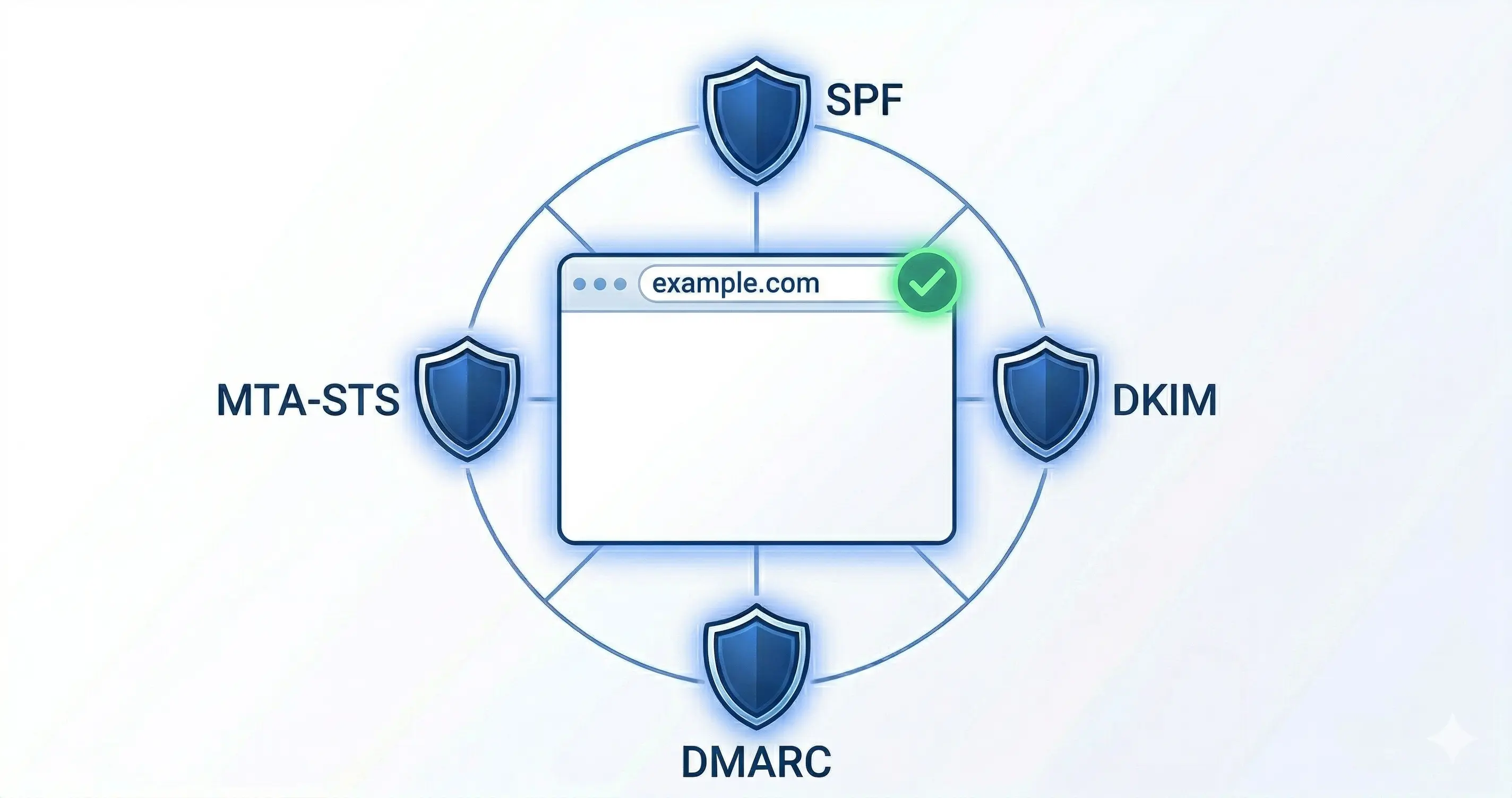
Not really. You just put a mail domain into production before configuring the two control layers that matter:
- Sender authentication: SPF, DKIM, DMARC
- Transport security: MTA-STS, TLS-RPT
SPF, DKIM, and DMARC help receiving servers decide whether a message that claims to be from you is actually authorized. MTA-STS and TLS-RPT protect SMTP delivery to your domain.
This guide defines the secure sequence for bringing a new email domain online: publish and validate the sender-authentication and transport-security controls before the first user mailbox starts sending real mail. Not later. Not “when we have time.” Before.
Prerequisites
- Domain registrar account credentials
- Admin access to Microsoft 365 Admin Center or Google Workspace Admin Console
- DNS managed on Cloudflare (highly recommended - why Cloudflare)
- A destination for reports:
- For DMARC, an email address on a domain that already receives mail
- For TLS-RPT, a dedicated report mailbox or an HTTPS endpoint
- Public HTTPS hosting for
https://mta-sts.yourdomain.com/.well-known/mta-sts.txtif you are going to enable MTA-STS
Step-by-step process
Step 1. Register the domain
Purchase and register the new domain via your registrar. Keep it parked initially with the parked domain security configuration applied from day one.
Step 2. Add the domain to Cloudflare
Add the domain to your Cloudflare account and configure the nameservers at the registrar to point to Cloudflare. All DNS will be managed from here.
Step 3. Add the domain to your email platform
Microsoft 365:
- Log in to Microsoft 365 Admin Center
- Go to Settings > Domains > Add domain
- Microsoft will provide a TXT verification record - add it in Cloudflare
- Confirm verification in Microsoft 365
Official docs: Add a domain to Microsoft 365
Google Workspace:
- Log in to Google Workspace Admin Console
- Go to Account > Domains > Manage domains > Add a domain
- Google will provide a TXT verification record - add it in Cloudflare
- Confirm verification in Google Admin
Official docs: Verify your domain for Google Workspace
Step 4. Configure MX and switch from the parked baseline
If you started with a parked-domain baseline, this is the moment to replace it: remove the parked MX, replace the parked SPF record, update report destinations if needed, and remove any parked-domain DKIM cleanup or revocation entries before enabling live mail.
The MX record directs incoming email to your platform’s servers.
Microsoft 365:
| Type | Name | Value | Priority |
|---|---|---|---|
| MX | yourdomain.com | yourdomain-com.mail.protection.outlook.com | 0 |
Official docs: Connect your domain by adding DNS records
Google Workspace (accounts created since April 2023):
| Type | Name | Value | Priority |
|---|---|---|---|
| MX | yourdomain.com | smtp.google.com | 1 |
Official docs: Set up MX records for Google Workspace
For Google Workspace, remove any other MX records for the domain. After the new MX record is published, go to Account > Domains > Manage domains and click Activate Gmail. MX recognition can take up to 72 hours.
Step 5. Configure sender-authentication records
5.1 SPF
SPF authorizes which servers can send email from your domain.
Microsoft 365:
yourdomain.com TXT "v=spf1 include:spf.protection.outlook.com -all"Google Workspace:
yourdomain.com TXT "v=spf1 include:_spf.google.com -all"If you use additional services that send email on your behalf (marketing, support, ticketing, billing, etc.), add them to the same SPF record with extra
include:mechanisms. Never publish two SPF records.
5.2 DKIM
DKIM cryptographically signs your outbound mail so the receiver can verify the message was authorized and not modified in transit.
Microsoft 365:
- Go to the Defender portal DKIM page: security.microsoft.com/dkimv2
- Select your domain
- Copy the exact two CNAME targets shown for your tenant
- Publish those CNAMEs in Cloudflare
- Enable DKIM signing only after the records resolve correctly
| Type | Name | Value |
|---|---|---|
| CNAME | selector1._domainkey.yourdomain.com | Copy the exact target shown by Microsoft |
| CNAME | selector2._domainkey.yourdomain.com | Copy the exact target shown by Microsoft |
Microsoft’s published examples are illustrative only. The real CNAME targets depend on your tenant’s initial
onmicrosoft.comdomain and Microsoft routing partition.
Official docs: DKIM in Microsoft 365
Google Workspace:
- After Gmail is activated, wait 24-72 hours before generating the DKIM key
- In Admin Console, go to Apps > Google Workspace > Gmail > Authenticate email
- Generate a new DKIM record
- Prefer a 2048-bit key if your DNS provider supports it
- Publish the TXT record in Cloudflare
- Only after the TXT record is visible in DNS, click Start authentication
| Type | Name | Value |
|---|---|---|
| TXT | google._domainkey.yourdomain.com | v=DKIM1; k=rsa; p=... (the key Google provides) |
Official docs: DKIM in Google Workspace
5.3 DMARC
DMARC tells receiving servers what to do when a message fails SPF or DKIM alignment.
_dmarc.yourdomain.com TXT "v=DMARC1; p=reject; rua=mailto:dmarc-reports@your-report-domain.com;"For a brand-new domain you fully control,
p=rejectis a reasonable target after SPF and DKIM are correctly configured and passing in your tests. If you want a softer rollout, start withp=none, validate, and then move top=reject.
If
ruapoints to another domain, that receiving domain must also publish the authorization TXT record:
yourdomain.com._report._dmarc.your-report-domain.com TXT "v=DMARC1"
Step 6. Configure transport security
Sender authentication and transport security are not the same thing. SPF, DKIM, and DMARC protect your domain’s identity. MTA-STS and TLS-RPT protect SMTP delivery to your domain.
6.1 MTA-STS
MTA-STS tells supporting senders that mail to your domain should be delivered over authenticated TLS, using the MX hosts you publish.
Recommended rollout:
- Start in testing mode
- Collect and review reports for at least several days, ideally around two weeks
- Move to enforce only after the policy validates cleanly
Policy file location:
https://mta-sts.yourdomain.com/.well-known/mta-sts.txt
The host that serves this file must:
- Support HTTPS
- Present a certificate trusted by public root CAs
Generic policy file:
version: STSv1
mode: testing
mx: <your MX host from step 4>
max_age: 604800
Common examples:
- Microsoft 365 (direct to Exchange Online):
mx: *.mail.protection.outlook.com - Google Workspace with the single MX record:
mx: smtp.google.com
Assertion TXT record:
_mta-sts.yourdomain.com TXT "v=STSv1; id=<YYYYMMDDhhmmssZ>"Use the current UTC date/time or another unique value for
id, and update it every time the policy changes - including when moving fromtestingtoenforce.
6.2 TLS-RPT
TLS-RPT lets supporting senders send you daily reports about TLS and MTA-STS failures they see when trying to deliver mail to your domain.
Mailto example:
_smtp._tls.yourdomain.com TXT "v=TLSRPTv1; rua=mailto:tls-reports@your-report-domain.com"HTTPS example:
_smtp._tls.yourdomain.com TXT "v=TLSRPTv1; rua=https://reports.your-report-domain.com/v1/tlsrpt"
mailto:andhttps:are both valid report URIs. For a brand-new domain, an external report mailbox or HTTPS endpoint avoids creating a user mailbox just to receive reports.
Step 7. Validate in two layers
Publishing DNS is only half the job. You also need to confirm the provider is actually signing and serving what you expect.
7.1 Check that DNS is published correctly
nslookup -type=MX yourdomain.com
nslookup -type=TXT yourdomain.com
nslookup -type=TXT _dmarc.yourdomain.com
nslookup -type=TXT _mta-sts.yourdomain.com
nslookup -type=TXT _smtp._tls.yourdomain.com
nslookup -type=CNAME selector1._domainkey.yourdomain.com   # Microsoft 365
nslookup -type=CNAME selector2._domainkey.yourdomain.com   # Microsoft 365
nslookup -type=TXT google._domainkey.yourdomain.com        # Google Workspace
Useful online tools:
- MXToolbox - general DNS verification
- Hardenize - broader mail and TLS posture
- MTA-STS Validator - validates MTA-STS policy hosting and syntax
- Check your email security - NCSC (UK) email security audit
7.2 Check that the platform behavior is actually working
Microsoft 365:
- After the DKIM CNAMEs resolve, enable DKIM in Defender
- Send a test message to an external mailbox
- Inspect the message headers and confirm DKIM signing is present and passes
Google Workspace:
- After the DKIM TXT record is published, click Start authentication
- Send a test message to someone using Gmail or Google Workspace
- Do not test by sending the message to yourself on the same domain
- In Gmail, open Show original and confirm the headers show
DKIM=pass
MTA-STS:
- Confirm the policy file loads at the HTTPS URL
- Run an external validator
- If available in your platform, review its MTA-STS health or security view
DMARC and TLS-RPT:
- Confirm reports are arriving at the destination you chose
- If nothing arrives immediately, remember that report cadence depends on sender support and traffic volume
Step 8. Create the first user mailbox
Only when steps 1-7 are complete and your test messages behave correctly should the first user mailbox start sending production email.
Validation checklist
| Item | Status |
|---|---|
| Domain verified in the platform | ⬜ |
| Parked-domain baseline replaced | ⬜ |
| MX configured and old MX removed | ⬜ |
| SPF published as a single record | ⬜ |
| DKIM published and signing active | ⬜ |
| DMARC published and report destination working | ⬜ |
| MTA-STS policy published, reachable over HTTPS, and validated | ⬜ |
| TLS-RPT published | ⬜ |
| First test message passes authentication checks | ⬜ |
| First user mailbox created | ⬜ |
Quick reference table - DNS records
Microsoft 365
| Type | Name | Value |
|---|---|---|
| MX | yourdomain.com | yourdomain-com.mail.protection.outlook.com |
| TXT (SPF) | yourdomain.com | v=spf1 include:spf.protection.outlook.com -all |
| CNAME (DKIM) | selector1._domainkey.yourdomain.com | Copy the exact target shown by Defender or PowerShell |
| CNAME (DKIM) | selector2._domainkey.yourdomain.com | Copy the exact target shown by Defender or PowerShell |
| TXT (DMARC) | _dmarc.yourdomain.com | v=DMARC1; p=reject; rua=mailto:dmarc-reports@your-report-domain.com; |
| TXT (MTA-STS) | _mta-sts.yourdomain.com | v=STSv1; id= |
| TXT (TLS-RPT) | _smtp._tls.yourdomain.com | v=TLSRPTv1; rua=mailto:tls-reports@your-report-domain.com |
Google Workspace
| Type | Name | Value |
|---|---|---|
| MX | yourdomain.com | smtp.google.com (priority 1) |
| TXT (SPF) | yourdomain.com | v=spf1 include:_spf.google.com -all |
| TXT (DKIM) | google._domainkey.yourdomain.com | v=DKIM1; k=rsa; p=(key provided by Google) |
| TXT (DMARC) | _dmarc.yourdomain.com | v=DMARC1; p=reject; rua=mailto:dmarc-reports@your-report-domain.com; |
| TXT (MTA-STS) | _mta-sts.yourdomain.com | v=STSv1; id= |
| TXT (TLS-RPT) | _smtp._tls.yourdomain.com | v=TLSRPTv1; rua=mailto:tls-reports@your-report-domain.com |
Related reading:
- Parked domains: 4 DNS actions to stop anyone from using them against you - if the domain does not send email yet
- MTA-STS: protect your domain’s email in transit - detailed MTA-STS implementation
By: Cesar Rosa Polanco - Based on a real-world case, with AI used as an editorial assistant.