I followed Anthropic’s official documentation to install Claude Desktop with Cowork on Windows 11. It didn’t work. The installer completed, the app opened, but Cowork failed to register its service and tasks never started. After several attempts, I found the sequence that actually worked on my machine. This article documents that sequence and adds something the official docs only touch lightly: how Cowork works under the hood, what it does well for security, what real risks it carries, and what practices a private user should follow before installing it on a personal machine.
One important clarification up front: this guide documents what worked for me on one specific system. Where Anthropic does not document a behavior as a general requirement, I present it as a field observation rather than as a universal rule.
As of April 2026, Cowork appears in Anthropic’s public documentation as available for paid plans inside Claude Desktop on macOS and Windows. The release notes already describe it as generally available, while some help-center pages still describe it as a research preview. By contrast, computer use inside Cowork is still explicitly marked as a research preview for Pro and Max plans. If your account doesn’t have a compatible plan, the Cowork tab won’t appear.
Summary
- The official install sequence doesn’t always work on Windows 11. This is the one that worked for me.
- Local administrator privileges can be a real requirement during install, not just a one-time UAC prompt.
- On Windows 11, MSIX sideloading is usually enabled by default, but Developer Mode may still matter depending on device policy or how Windows validates the package.
- In my case, Hyper-V interfered with Cowork. I present that as a field observation, not as an official Anthropic requirement.
- Cowork isolates code execution in a VM, but it doesn’t protect you from commands you explicitly approve.
- For private use: a dedicated folder, never point it at a OneDrive or iCloud root, and never use computer use for banking, healthcare, or other sensitive workflows.
Why this isn’t a normal install
Three things make this different from installing Slack, VS Code, or any other typical desktop app:
MSIX packaging. Claude Desktop is distributed as MSIX, not as a traditional MSI installer. On Windows 11, sideloading is usually enabled by default, but on managed devices, under stricter policy, or when package trust becomes an issue, Developer Mode can still make the difference.
Hardware virtualization. Cowork isolates its tasks inside a lightweight virtual machine built on VirtualMachinePlatform. That requires virtualization enabled at the BIOS level: Intel VT-x plus VT-d, or the AMD equivalent SVM Mode. If those components are off, Cowork may fail to start properly.
System service. In my install path, the process had to register CoworkVMService as a Windows service. That kind of operation typically requires local administrator privileges at install time. Once registered, the service can continue working without the user remaining an admin.
STEP 1 - Enable virtualization in BIOS
If your machine lets you enter BIOS with F1, F2, or Del at boot, use that. If not, you can get there from Windows:
Settings → System → Recovery → Advanced startup → Restart now → Troubleshoot → Advanced options → UEFI Firmware Settings → Restart
Once in BIOS, look for the virtualization section. It’s usually under Security or Advanced:
- Intel: Intel Virtualization Technology (VT-x) → Enabled, Intel VT-d Feature → Enabled
- AMD: SVM Mode → Enabled (covers AMD-V and AMD-Vi on most boards)
Save and exit with F10. The machine will reboot.
STEP 2 - Add the user to the local Administrators group
This step comes first because the next one may also require admin privileges. If the user isn’t a local administrator, many systems won’t let them enable Developer Mode or complete service registration cleanly.
Open PowerShell as administrator and run:
Add-LocalGroupMember -Group "Administrators" -Member "Username"
Restart-Computer
Replace Username with the name of the user who will run the installer. For local users, use the plain username. For domain or Microsoft account users, use the format appropriate to your setup.
The reboot matters because it lets the group membership change fully take effect in the user’s session.
STEP 3 - Enable Developer Mode if your system needs it
On Windows 11, sideloading is usually enabled by default. Even so, if the installer rejects the package, if the device is policy-managed, or if you want to reproduce the exact sequence that worked for me, turn on Developer Mode.
Depending on your Windows build, the path may vary slightly. The fastest route is to search for Developer Mode in Settings. If you want to navigate manually:
Settings → System → Advanced → For developers → Developer Mode → On
On older Windows 11 builds, this may still appear directly under System → For developers.
STEP 4 - Install Claude Desktop
Sign in as the target user, the same one you just granted admin to. Download the installer from:
https://claude.ai/download
Run the installer. Since the user already has sufficient privileges, the installation should also complete the CoworkVMService registration instead of stalling or prompting for separate credentials.
STEP 5 - Test Cowork
Open Claude Desktop, sign in with an account that has a compatible paid plan, and go to the Cowork tab. Start a simple task, such as asking it to organize a test folder, and confirm that it runs from start to finish.
If Cowork doesn’t appear as a tab, check the plan. If it appears but the task fails without a useful error, jump straight to the Hyper-V section.
STEP 6 - Remove the user from the local Administrators group
Once Cowork is confirmed working, revoke admin privileges:
Remove-LocalGroupMember -Group "Administrators" -Member "Username"
Restart-Computer
After the reboot, confirm that Cowork still works in standard user mode. The service is already registered and doesn’t require the user to keep admin rights. Least privilege applies here with full force: the user only needed admin for the minimum time required.
The real gotcha: Hyper-V and VirtualMachinePlatform
Anthropic does not currently document this as a general requirement. I’m documenting it as a field observation because on my machine it was the difference between Cowork opening and Cowork actually executing tasks.
Cowork uses VirtualMachinePlatform, not full Hyper-V. They are related, but distinct, components under Windows Features.
In my case, with Hyper-V enabled, Cowork opened but tasks ended in task failed with no useful explanation in the UI. The service looked present; actual execution did not.
Verification from PowerShell as administrator:
Get-WindowsOptionalFeature -Online -FeatureName VirtualMachinePlatform
Get-WindowsOptionalFeature -Online -FeatureName Microsoft-Hyper-V-All
The first should show State: Enabled. The second should ideally show State: Disabled if you’re reproducing this exact failure case.
If Hyper-V is enabled and you’re seeing the same pattern, try disabling it:
Disable-WindowsOptionalFeature -Online -FeatureName Microsoft-Hyper-V-All
Restart-Computer
I am not presenting this as a universal requirement. I’m presenting it as the variable that unlocked Cowork on my system.
How Cowork works under the hood
Installing it is one step. Understanding what it’s doing on your machine is another.
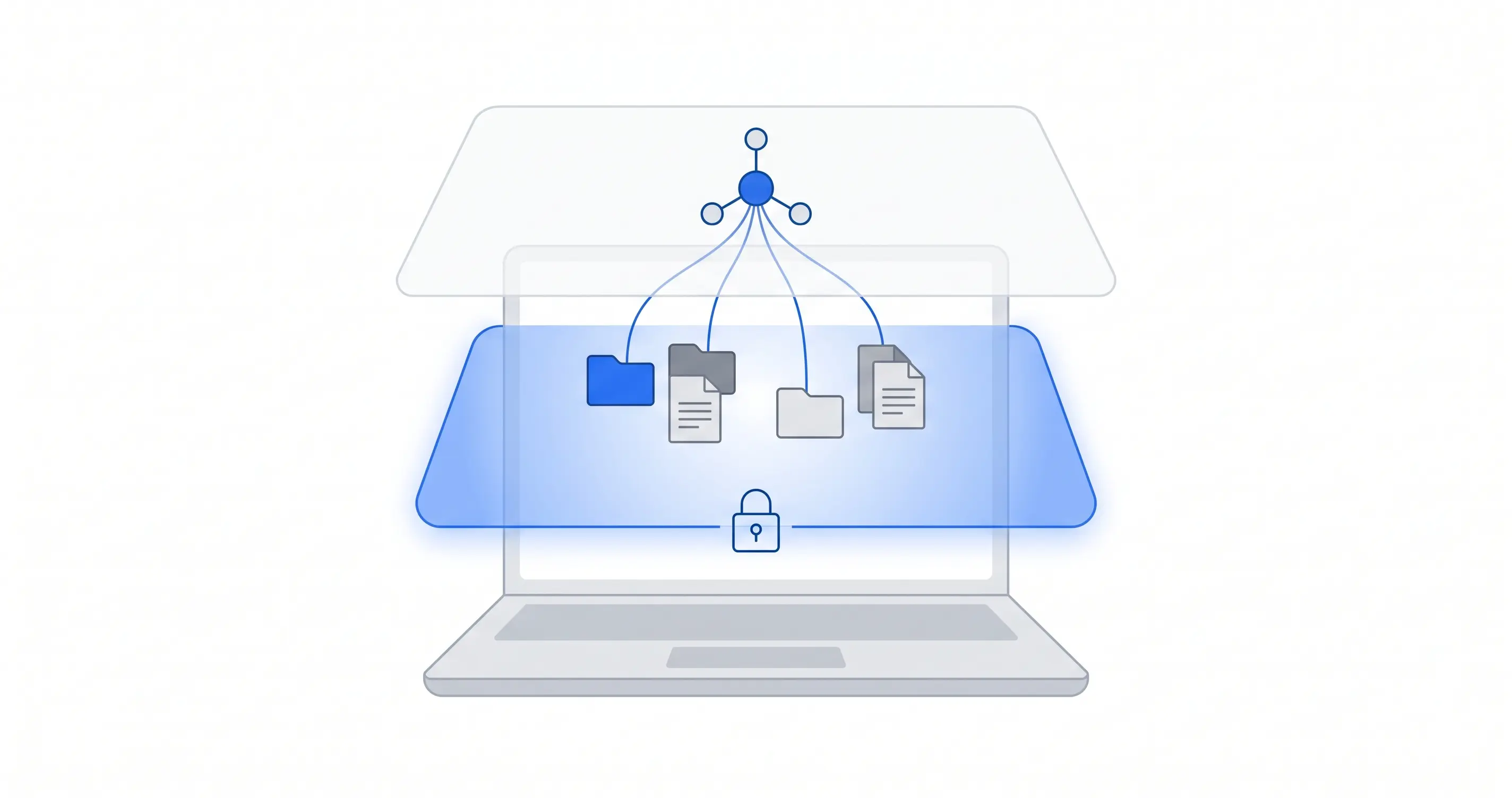
Anthropic documents that Cowork runs code and shell commands inside an isolated virtual machine on your own computer. In practice, that means the work is not running directly on the Windows host, and file access depends on the folders you choose to connect. No permission, no access.
On top of that, Anthropic adds several user-visible layers:
- Per-folder explicit permissions. Before each task, you decide which folders Cowork can see.
- Visible planning and progress. Cowork shows what it intends to do and lets you intervene if it starts drifting.
- Confirmation for significant actions. For operations like permanent file deletion, it requires explicit approval.
- Classifiers and safeguards against prompt injection. They don’t eliminate the risk, but they do add a meaningful layer of defense.
Concrete strengths
What this model does well, and what is publicly documented:
- Real isolation from the main operating system. Code and shell commands run inside a VM separate from the host.
- Controlled file access. Claude can read and write only in the folders you choose to connect.
- Real-time visibility. You can follow the plan, progress, and relevant actions while the task runs.
- Stronger protection for permanent deletions. Cowork should not permanently delete files without an explicit approval step.
Real and transparent risks
The sandbox is not magic. There are things it doesn’t protect against, and it’s better to say that plainly.
The sandbox protects the operating system, not the data inside the folders you gave it. If you grant access to a folder and then tell Claude to reorganize, delete, or overwrite, it will. The protection is against unauthorized reach into the host, not against a bad instruction you approved yourself.
Prompt injection is still a real risk. Anthropic is fairly direct about that. The classifiers help, but malicious websites, manipulated documents, and untrusted inputs remain realistic attack vectors.
Computer use changes the risk profile. When Claude interacts directly with your screen and applications, it works outside the VM that normally isolates Cowork tasks. At that point you’re no longer talking only about mounted folders; you’re talking about your actual desktop session.
Approval fatigue is real. After approving twenty harmless actions in a row, the twenty-first gets less scrutiny. That’s not a product defect. It’s predictable human behavior.
The product is still moving. Part of the public documentation now frames Cowork as generally available, while other pages still call it a research preview. That’s a useful signal: capabilities and limits are still evolving.
There is no compliance-grade audit trail equivalent to classic audit logging. Cowork activity does not flow into Audit Logs, the Compliance API, or Data Exports. Team and Enterprise now have additional visibility through OpenTelemetry, but that is not the same thing as compliance audit logging.
Best practices for a private user
If you’re going to use Cowork on a personal machine, these six practices genuinely change the risk-benefit balance in your favor:
| # | Risk area | Impact | Likelihood | Recommended mitigation |
|---|---|---|---|---|
| 1 | Access to cloud-synced data | High | Medium | Never point Cowork at the root of OneDrive, iCloud, Google Drive, or Dropbox. Use a dedicated non-synced folder, for example C:\AI-Workspace\Cowork. Copy or move only the files needed for each task there. |
| 2 | Exposure of sensitive personal data | High | Medium | Don’t grant access to folders containing tax documents, passports, contracts, legal correspondence, or files with passwords or tokens. If you need to work with sensitive material, do it through specific excerpts, not by exposing the entire folder. |
| 3 | Browser automation and computer use | High | Medium | Claude in Chrome and computer use are powerful, but don’t use them for online banking, government portals, healthcare workflows, or irreversible actions under your logged-in session. Keep them off by default and enable them only for domains and apps you truly trust. |
| 4 | Prompt injection in inputs | High | Medium | Feed Cowork only files and URLs from known sources. PDFs downloaded from unknown sites, emails from unverified senders, or arbitrary web pages are real prompt injection vectors. |
| 5 | Third-party plugins and MCPs | High | Medium | Install only verified extensions or tools from sources you actually trust. Every plugin or MCP adds code, permissions, and external data flows to your session. Evaluate requested permissions carefully before enabling anything. |
| 6 | Vague instructions and approvals without reading | Medium | High | Read the plan Cowork shows before approving it. Avoid instructions like “clean everything up” or “organize it however you think best.” Back up before destructive operations. If an approval starts to feel routine, stop and actually read it. |
The single most important recommendation is the first one. A dedicated folder like C:\AI-Workspace\Cowork removes a large class of avoidable failure modes in one move. It takes almost no effort to set up and prevents most of the incidents that would matter.
Responsible use of LLMs
Beyond technical configuration, there’s a principle that applies to Cowork and to every other AI agent:
Always verify the output against the source. Models can make mistakes, hallucinate, or misread a well-intended instruction. If Cowork gives you a summary of three documents, read them too before acting. If it reorganizes a folder, inspect what it moved before accepting the result. If it drafts an email for you, read it before sending.
That principle matters even when the tool seems to be working well. Automation amplifies your reach, but it also amplifies your oversight failures. The agent can help you a lot. It cannot replace your judgment.
After the install
Once Cowork is running, it should continue to operate with standard user privileges. The key point is that the service is already registered; the user shouldn’t need to keep administrator rights for normal use.
If Cowork stops working after a major Windows update, the first checks are:
VirtualMachinePlatformis still enabled- Hyper-V is still disabled, if that was the factor affecting your machine
CoworkVMServiceis still running (services.msc)- Your compatible paid plan is still active
In many cases, the first point turns out to be the cause: Windows sometimes reshuffles optional features during major updates.
One final point about consumption. Cowork burns through Claude usage limits faster than traditional chat because a single task can trigger dozens of internal actions. It’s worth keeping in mind, especially if you’re on Pro. I wrote about that in more detail in The day I spent 83 on AI tokens.
By: Cesar Rosa Polanco - Based on a real case, with editorial support from artificial intelligence.